This tutorial demonstrates how to send e-mail via SMTP with Office 365 in the classic username/password way (not using OAuth 2.0).
At the moment of writing (Jan-2026) Microsoft 365 / Office 365 still allows the apps to send e-mails via SMTP and username/password authentication.
This, however, requires disabling two-factor auth (because in this case the email is being sent by a program in non-interactive scenario, not by a human who can respond to 2FA request).
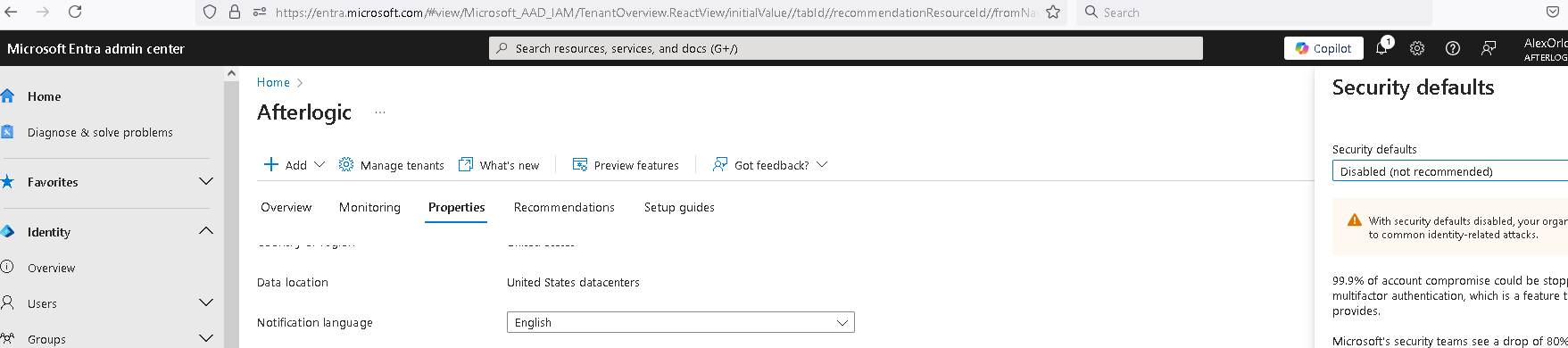
Make sure that security defaults for O365 tenant are disabled (this disables 2FA requirement).
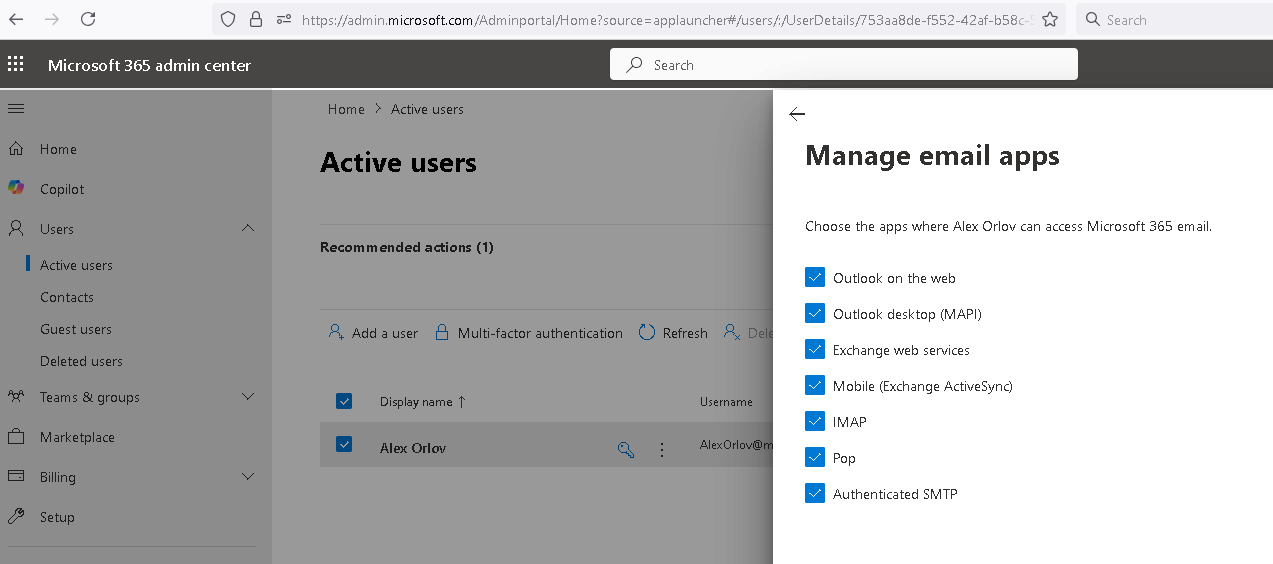
And make sure SMTP auth is enabled (Authenticated SMTP is on):
MailBee.NET code would be:
// Add to the top of your code file (if not already present)
using MailBee;
using MailBee.SmtpMail;

...

MailBee.Global.LicenseKey = "License key";

Smtp mailer = new Smtp();

mailer.Log.Enabled = true;
mailer.Log.Filename = @"C:\Temp\log.txt";
mailer.Log.Clear();

mailer.SmtpServers.Add("smtp.office365.com", "myemail@mytenant.onmicrosoft.com", "password").Port = 587;

mailer.From.AsString = "myemail@mytenant.onmicrosoft.com";
mailer.To.AsString = "support@afterlogic.com";
mailer.Subject = "Test";
mailer.Send();
' Add to the top of your code file (if not already present)
Imports MailBee
Imports MailBee.SmtpMail

...

MailBee.Global.LicenseKey = "License key"

Dim mailer As New Smtp()

mailer.Log.Enabled = True
mailer.Log.Filename = "C:\Temp\log.txt"
mailer.Log.Clear()

mailer.SmtpServers.Add("smtp.office365.com", "myemail@mytenant.onmicrosoft.com", "password").Port = 587

mailer.From.AsString = "myemail@mytenant.onmicrosoft.com"
mailer.To.AsString = "support@afterlogic.com"
mailer.Subject = "Test"
mailer.Send()
Copyright © 2006-2026 AfterLogic Corporation. All rights reserved.